So what do you do if you work in an organisation where you don’t want to administer the Notes client, but still need to give people access to Notes applications? You start using Nomad! Here is how I did it.
Preparations
After downloading the software, which consisted of:
- Domino server 14.5
- Domino server 14.5 Fix Pack 5
- Nomad client
- HCL Notes 14.5 with Designer and Admin client
- HCL Notes 14.5 FP5
I got to work.
And yes, I know 14.5.1 is out now, but I never use the latest version. I’m always one version behind.
Domino server upgrade
1. Fixup
First I ran a fixup on all applications. Thankfully I don’t have that many notes applications (databases) to do this on, but if you on your environment hav hundreds or even thousands, I would suggest you do this via a batch job. The command I ran was:
load fixup -f -j -v [folder]\[filename].nsf
I first did this for all the standard applications, like NAMES.NSF (StdR4PublicAddressBook), LOG.NSF (StdNotesLog), EVENTS4.NSF (StdR4Events) ADMIN4.NSF (StdR4AdminRequests) and so on. You’ll find all of those in the root directory of your Domino admin client. Then I did it for all the applications my users are still using. Some of these applications are huge with enormous amounts of data, but the fixup ran pretty quick. On some it took 10 seconds, on others it took a minute, two minutes at the most.
2. Inherit Design
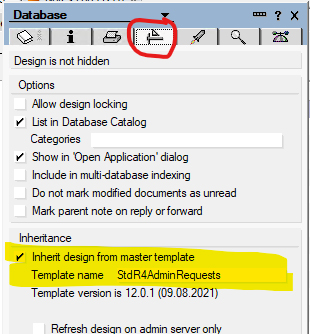
I then checked all the standard applications to see if inheritance was set on all of them. That way, I was sure that they were updated to the latest version when upgrading the server:
3. Server shutdown
I started the HCL Domino Console by clicking on its icon on the server desktop. I then went to the File menu and chose Stop Server. I was then asked if I really wanted to shut down the server, and I confirmed.
The server shut down, and in the console I could see that everything went smoothly and that all services were indeed turned off.
After this I went into Windows services to make sure all Domino services were shut down. One of them wasn’t so I turned it off manually. And I strongly recommend that you right click on the HCL tasks, choose Properties, find Startup type and set it to Disabled or Manual, do not leave it set to Automatic:
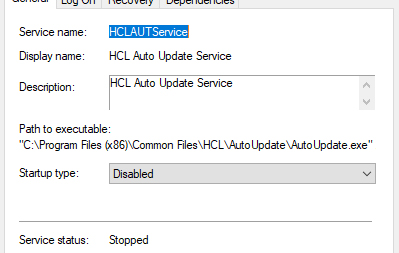
The list of HCL processes should look like this when you’ve done this for all of them:

Also, start Task Manager on the server to see if any HCL processes are running there. If so, shut them down. When I first tried to start the upgrade, it aborted and told me that I had a Notes process running in the background. I found it in Task Manager and was able to shut it down.
4. Backup of files and folders
I’m a worst scenario kind of guy. So even if every single Domino server upgrade I’ve run in my life have gone without a hitch, I still to this day take a backup of the system databases, server id files , the notes.ini file and my applications. Now, the latter might take a lot of time, so your mileage may wary here. If you know you have a good server backup that is running several times a day, you might feel you can skip that. However, verify that this backup looks good before proceeding. I mean, you never know, right?
5. Running the upgrade
I started the upgrade by running the installation file (I remembered to right click on it and run it as administrator). I followed the onscreen prompts and made the appropriate choices for our environment.
When the upgrade was finished, I did not restart the server immediately.
6. ODS level
First I opened the notes.ini file and checked if this line was in there: Create_R12_Databases=1.
It wasn’t, so I added it. This will make sure all new nsf files we create on the Domino server will have the latest ODS version (55 at the time of writing this). I really don’t need this, I think, since we will not be creating any new nsf files in the future. But you never know. It doesn’t hurt.
7. Fix the Windows services
Before restarting the server, I also went into Windows services and made sure all the HCL processes I had set to Disabled now were set to Automatic.
8. Restarting the server
I held my breath, and finally told the installation program to restart the Domino server. It started with the configuration task and after it was done, the installation started updating the environment. For some reason, this suddenly just stopped and the installation window just closed. Yikes! Small pearls of sweat started to form on my forehead.
I found the HCL Domino Console icon on the server desktop and double clicked on it. When it started, it asked me if I wanted to configure the environment. I concurred, and without a hitch the server started up and everything was hunky dory! The Domino server was up and running, the version was 14 and and I could access applications again. Yay! After wiping my brow and spraying some deodorant in my armpits, I continued on.
9. Upgrading ODS level
During check point 6 above, I told the server that all new nsf files created should have the latest ODS level. But this doesn’t affect the already existing nsf files on the server. I therefore opened the server console and ran this command for each of my application folders:
load dbmt [folder name] -ct 4 -ut 0
This will upgrade all nsf files in that folder, and nsf files in any sub folders, to the latest ODS level. You can do this on the whole data folder but I do not recommend that. Once again: If you have loads and loads of Notes applications, this is probably something you would do scripted and/or automated.
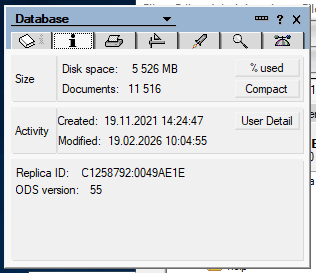
I also made sure to check that the applications in the folder I upgraded the ODS level of were indeed set to ODS version 55:
I then continued on and did this for the rest of my applications, and I also ran the command on the IBM_ID_VAULT folder. Also: Remember to do this on any mail files as well. Even if we don’t use Notes for mail anymore, we do have a couple of mailin databases, so I ran the command on the mail directory as well.
10. Upgrading to latest templates
If the server upgrade includes new version of templates used by the standard Notes applications, such as names.nsf, log.nsf, catalog.nsf etc, their design will be refreshed automatically the next time the server task for design refresh is run. Usually this happens outside of business hours. However, on our server, this doesn’t run, so I refreshed all these applications manually.
Also beware that the new version of the mail template will have the version number as part of the template name. This means that the mail file will not be refreshed automatically. You have to change the properties for the mail files, telling it to use the new mail template for design refresh, otherwise it will continue to use the old template.
Since I only have to mail files, I did this manually, but if you have a lot of mail files, you should do this via scheduled operation.
10. Installing Fix Pack 5
There have been several fix packs and interim fixes for Domino V14 since it was released, so naturally I downloaded the latest Fix Pack. To install it, I did the following:
- Shut down the Domino server from the HCL Domino Console.
- Stopped all HCL Windows services that were running and set the Startup type to Disable under Properties.
- Opened Task Manager to check that no HCL programs were running in the background.
- Right clicked on the FP5 installation file and chose Run as Administrator.
- Followed the on screen prompts and let the installation run.
- After the installation was finished, I set all HCL Windows Services back to Startup type Automatic.
- I then restarted the server by clicking HCL Domino Console icon on the server desktop.
And by that, I had upgraded the server from Domino V12.0.1 to V14.0. I’m sooooo clever!
Installing Nomad for web
But there was no time to rest on my laurels. Or at my desk. Now I had to install Nomad on the server.
1. Install Nomad on Domino
I doubled clicked on the zip file for Nomad, which I downloaded from HCL. And I found the following contents in it:
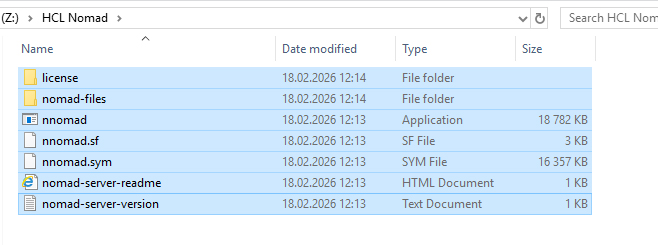
After copying all these folders and files, I pasted them into the HCL Domino program directory (NOT THE DATA DIRECTORY). And that’s the complete installation!
2. Starting Nomad
I then opened the Domino server console and wrote: load nomad. And it just started!

I then edited notes.ini and added that the nomad task should start automatically, together with the certmgr and http tasks, whenever Domino is restarted.
3. Checking the http task
The next step was to see if I was able to connect to the Domino server and the Notes applications via my Microsoft Edge web-browser. When I wrote the URL to the server, it gave me the standard Domino image:
The next step was to see if I would be able to reach Nomad via port 9443 or port 9080. And I couldn’t reach them. On the server level, these ports were open. But it turns out the the local firewall on the computer running the Windows servere did not allow these to be open. So I had to open them first.
So far, so good. But now I was really feeling that I was standing on shaky ground.
4. Fixing https and a certificate
Look, I’m not a network guy. Nor do I know much about certificates, https and such stuff. But I do know some basic stuff. I therefore asked my Windows administrator to do the following:
- Create a new certificate for the server Domino is running on.
- Give me the PFX file containing the certificate and the password for it.
- Create a DNS entry which would take the Notes users to Nomad when they wrote notes.[internaldomain] in the URL field instead of them having to write in the server name or an IP-address, including having to add :9443.
The next hing I had to do was import the certificate. I found the documentation for setting up TLS Credentials on Domino and discovered that I didn’t have the cert.nsf application on our server. I therefore went into the console and wrote load certmgr. This created the cert.nsf file, and I opened it, hoping to be able to import the certificate.
After som more problems I realised that my Notes version was 12.0, and I needed at least 12.0.2 to do this, so I simply upgraded my Notes, Designer and Admin clients to 14.0, so that they had the same version number as the server. Now I was ready to import the SSL certificate. Right?
And then the shit hit the fan. It’ve spent days trying to import the certificate. I kept getting various error messages and I just wasn’t able to get it working. Several people on the OpenNTF discord forums tried to help me out, and gave me some very good tips along the way, and a friend of mine who is one of the best Domino admins I know also tried to help me. But I kept getting this error: Internal error reading host key-pair. The encrypted data has been modified or the wrong key was used to decrypt it. This means diddlysquat to me, and several people I asked for help couldn’t figure it out either.
Enter Daniel Nashed. He knew exactly what checklist we had to follow and we discovered that I had forgotten to upgrade my Notes client to FP5! I had even downloaded it but I somehow forgot to install it. I was so embarrassed. But now it was solved and I could import the certificate.
Automatically renewal of certificate
I then started the work of setting up automatically renewal of the https certificate. Now, this would have been pretty straight forward as Domino does this by the book. However, it turns out that the server provider running our Windows servers follows another book.
When I created a new cert request in the Certificate Store application in Notes, it failed with following status: “Wrong number of ORGANIZATION fields in Subject DN.” When you create a new TLS Credential document, it automatically puts the organisation name in the Organization field. If I removed the organisation name from Edit Global Settings document in the app, it just added Notes as the organisation.
When I asked our service provider, they told me that their certificate service did not accept organisation as part of the request, and that I had to get it removed for this to work. Once again I talked to Daniel Nashed, and we both agreed that this was very strange. Most systems would just ignore the organisation if they didn’t accept it.
I finally got our service provider to make an exception for us in their system, and after they did this, the request was accepted, and the certificate should now automatically renew in August.
User testing
Finally I could let my users log onto Noma via their web browsers. And lo and behold, Notes was running just fine, inside their web browsers. And all the applications worked, just like if they were in the Notes client.
With one exception: One of the users used a password admin tool in the web browser that automatically fills out passwords for him. For some reason, this made it impossible for him to enter the password when logging onto Nomad. After I deactivated it, he was able to log on, just fine.
Summary
If you are an organisation that running standard Notes applications without third party integrations that require Java, COM-objects or non-Domino functionality, Nomad is perfect. You no longer need to administer the Notes client, and all you need to concern yourself with is the Domino server. This is perfect for my organisation, where only a few users need access to old Notes applications every now and then.
In short:
- Upgrading Domino is a piece of cake.
- Adding a Fix Pack is a piece of cake.
- Getting Nomad up and running is a piece of cake.
- https problems are usually NOT Domino’s fault.
- Every standard Notes application just works in Nomad.
- No more need for the installation of Notes clients.